On this page (7)
It’s Monday morning. Your merchandiser wants last quarter’s sell-through by collection, marketing needs a win-back segment before lunch, and someone in ops wants to know why three VIP orders still don’t have their tag. You could open four reports and start building an automation from scratch. Or you could type the question into Shopify Sidekick and get a first draft of each answer in a few minutes.
Sidekick is the AI assistant built into your Shopify admin. You ask it things in plain English, it looks at your real store data, and it prepares the report, the segment, the automation or the order edit for you. Nothing changes in your store until you say yes.
In this guide you’ll see what Sidekick actually does, which teams get the most out of it, how to set it up properly and which prompts are worth copying. You’ll also see exactly where it stops, because that matters as much as what it can do.
What Shopify Sidekick is
Shopify describes Sidekick as an AI commerce assistant. Think of it as a colleague who lives inside your admin and already knows your store. You can ask it a question about your sales, have it fill in a product form, plan a task with several steps or build an automation. When it wants to change something, it shows you the change first and waits for you to approve it. If you want the official reference, Shopify keeps the full documentation in its Help Center.
You don’t pay extra for it. Shopify includes Sidekick with every plan, although some features and usage limits depend on which plan you’re on. You don’t install anything either. The Shopify App Store lists it as a built-in feature, and you open it by clicking the purple glasses icon or the Sidekick field you’ll see on most admin pages.
Sidekick also goes wherever you work. You can use it on desktop, in a mobile browser and in the Shopify app on your phone or tablet. On an Apple Watch you can ask it quick questions by voice. And since it follows your store’s language settings, your team doesn’t have to work in English.
One more thing sets it apart from a regular chatbot: Sidekick doesn’t just wait for you to ask. It can study your store on its own and suggest things worth doing, which show up as cards on your Shopify Home page. Shopify used to call this feature Sidekick Pulse. You’ll find more on it further down.
Most of these abilities arrived with the Winter ‘26 Edition, Shopify’s big seasonal product update. That release added or expanded suggestions, custom app generation, Flow automations, skills, multi-step tasks and voice chat on mobile. If you used Shopify Magic in the past, you’ll notice the Generate text icon is still there on product descriptions, blog posts and pages. Sidekick now does that writing.
Who gets the most out of Shopify Sidekick
Sidekick earns its keep when your store has real volume. The more products, orders, campaigns and staff you have, the more time it saves you.
Growing ecommerce brands
At some point your catalog and order volume outgrow the hours in your day. Questions you used to answer by exporting a CSV and fiddling with a spreadsheet now take one sentence. Behind the scenes, Sidekick writes ShopifyQL, the query language Shopify uses to pull your store data into reports, so you get a custom report without learning the syntax yourself. For bigger analyses, it keeps working in the background and lets you know when the answer is ready. And once you save your favorite reports as skills, you get them in the same format every week.
Marketing and merchandising teams
If you work in marketing, you can describe what you want and let Sidekick draft it: a customer segment, a discount, an email campaign, a new collection, product copy or the SEO fields for a page. You review the draft and save it. Sidekick can also help you set up Campaign Autopilot, the marketing agent Shopify added to the admin, and check the SEO updates that Autopilot recommends.
Store and operations managers
Operations teams save the most clicks on order edits, draft orders, stock questions and automations. Say a customer emails to add one more item to an order. Sidekick can add the product, change the quantity or adjust a line item discount for you. It can also build automations in Shopify Flow, Shopify’s free automation app, so orders get tagged, alerts get sent and work gets routed without anyone doing it by hand. Each person on your team can only use Sidekick within their own admin permissions. If you want the order edits to happen without anyone opening the admin at all, our guide to AI agents for order management shows how that works on the customer side.
Shopify Plus teams
When lots of people touch the admin, you need control, and Shopify designed Sidekick with that in mind. Every staff member keeps their own permissions, and nothing goes live without a review. When Sidekick prepares a big batch of edits, it groups them on a Store changes card, a single review screen that holds up to 50 changes, so you can check everything in one go. If you sell wholesale, it can create B2B companies from a prompt. You can also have Sidekick generate small admin-only apps for your team without waiting on developers, and connect the apps you already use so they work inside the same chat.
How to set up and start using Shopify Sidekick
You don’t need to install anything, so setting up Sidekick really means three things: making sure the right people have the right access, learning how to give it good context, and deciding what it should remember.
Step 1: Check permissions and plan features
Sidekick sees exactly what each staff member can see. If someone on your team doesn’t have access to payouts, they can’t ask Sidekick about payouts either. That’s why it’s worth reviewing your staff roles before you roll it out.
A few features also depend on your plan or your settings. You need the Basic plan or higher to generate apps. Image generation limits apply to your whole store, not to each person. And suggestions on Shopify Home only appear on some stores with recent sales, for the owner or staff with admin access, once you turn on Shopify Network Intelligence. Network Intelligence is a store setting you switch on in your admin, and suggestions depend on it.
Step 2: Open Sidekick on the device you work on
On desktop, click the Sidekick field you’ll find on most admin pages. It opens in a panel next to the page you’re on and uses that page as context, so if you’re looking at an order, it knows which order you mean. On Shopify Home it opens full screen instead.
On your phone, you can use a mobile browser or the Shopify app. In the app, the conversation stays with you as you move between Orders, Analytics and Products. If you use an iPhone, you can also add Sidekick to your lock screen as a widget.
Step 3: Try voice and screen sharing
When typing is slow, click the voice icon and talk instead. Sidekick recognizes the language you speak, and you can switch between voice and text in the same conversation.
Shopify also has screen sharing in early access on desktop browsers. You share your screen and Sidekick walks you through a task live, a bit like having someone sitting next to you. To start, look for the Get guidance with a screen share call card on Shopify Home. If you’d rather keep the rest of your screen private, share just one browser tab.
Step 4: Give Sidekick precise context
The better Sidekick understands what you mean, the better the result. You have four simple ways to point it at the right thing.
The first is the @ key. When you type @ in a message, a list of your store items pops up, and you can pick the exact product, order, customer, collection, discount, segment or app you’re talking about. That way Sidekick doesn’t have to guess which sweater you mean.
The second is Target mode, which works on desktop. You turn it on and click the exact field, button or section on the page you want help with.
The third is attaching files. You can add up to 10 files per message, each up to 15 MB, in JPEG, PNG, WebP, PDF, CSV, text or JSON format. A supplier price list or your brand guidelines are good examples.
The fourth is skills, which you’ll set up in the next step.
Step 5: Set up memory and skills
Memory is on by default. Sidekick remembers your conversations for about 3 months and what you’ve done in the admin over roughly the last 12 hours. In practice, you can come back the next day and continue where you left off without explaining everything again. If you want a fresh start for a particular conversation, turn memory off before you send your first message.
Skills build on that memory. A skill is a set of instructions you save once, such as exactly how you like your weekly sales summary laid out. After that, Sidekick uses it automatically whenever it fits what you ask. There’s a full section on skills below.
Step 6: Connect your other apps
You probably run your store with a handful of third-party apps. Sidekick can work with the ones you’ve installed, as long as the developer has added Sidekick support. The first time Sidekick wants to use one, it asks for your permission. If you choose Yes, and don’t ask again, it stops asking for that app.
If your team builds its own apps, you can use Sidekick app extensions to let Sidekick read your app’s data and use its actions. You may also wonder about MCP, the open standard many AI tools use to connect to outside services. Shopify’s developer docs say you can’t plug an existing MCP server straight into Sidekick. The extension format borrows ideas from MCP, but it’s specific to Shopify, and each person can connect up to 20 apps per store.
Top features and how to use Shopify Sidekick in your store
Now for the fun part. Below you’ll find the main jobs Sidekick can take off your plate, each with prompts you can copy into your own store. Wherever a prompt mentions a product or collection, type @ and pick one of yours from the list. We use a Merino Wool Sweater and a Winter Coats collection as examples.
Data-driven insights and custom ShopifyQL reports
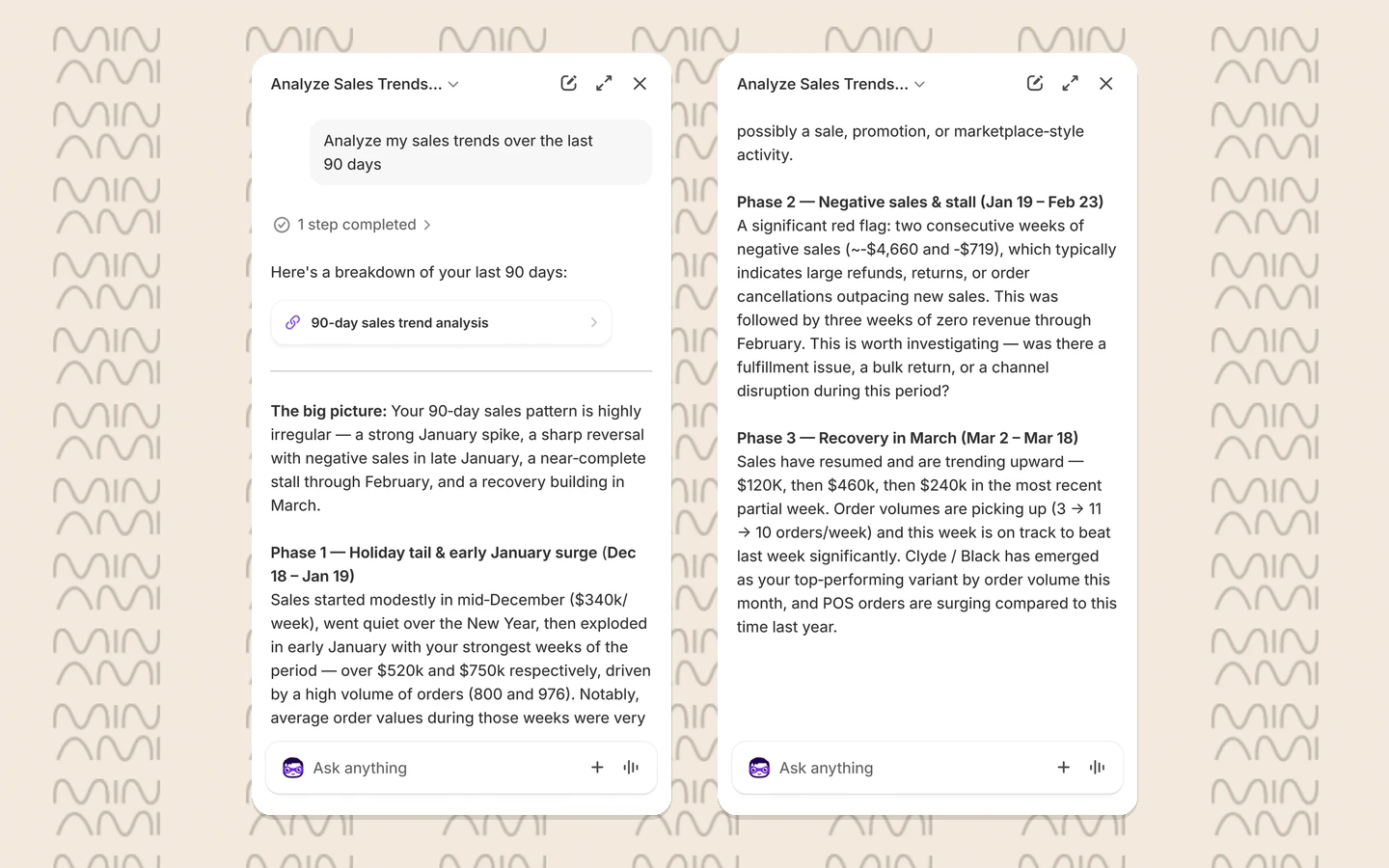
Shopify’s built-in reports cover the basics, but sooner or later you’ll want a number they don’t show. Normally that means building a custom report in ShopifyQL, Shopify’s query language for store data. With Sidekick, you just ask the question. It writes the query, builds the report and draws the chart for you.
It can also answer Shopify Payments questions about payouts and chargebacks. For forecasts or comparisons, it can even write and run its own code in the background. Here are a few prompts to start with:
- Show me my best-selling products this month.
- Chart my daily sales for the last 90 days as a line chart, and then describe the 3 biggest spikes.
- Compare my sales this quarter to the same quarter last year.
- What were my sales by channel this month?
Inventory, product and order management
Sidekick can fill in forms for you across the admin, including products, collections, customers, B2B companies and draft orders. Every field it touches turns purple, so you can see exactly what it changed before you hit save.
It also handles edits to orders that already exist. You can ask it to add a product, change a quantity or manage a line item discount. When you ask for a bigger change across many items, Sidekick doesn’t apply it one by one. It collects everything on a Store changes card so you can review up to 50 edits together.
- How many @Merino Wool Sweater remain in my inventory?
- Add one more @Merino Wool Sweater to this order and keep the existing discount.
- Using the last 12 months of sales data, project the next 90 days of sales, and inventory needs for the week. Provide a table showing expected orders, revenue, and recommended restock quantities.
Content and SEO optimization
You can ask Sidekick to write a first draft of a product description, a blog post, page copy or even an image. It helps with SEO too. It explains what the page title and meta description do, reviews how your page looks in search results, suggests better wording and fills in the new title and description on your product or collection form. You still decide whether to save.
- Analyze the SEO of @Merino Wool Sweater and suggest improvements.
- Rewrite the page title and meta description for @Merino Wool Sweater, and keep the title under 60 characters.
- Write a 600-word blog post about caring for wool sweaters, with an introduction, 3 sections, and a closing call to action.
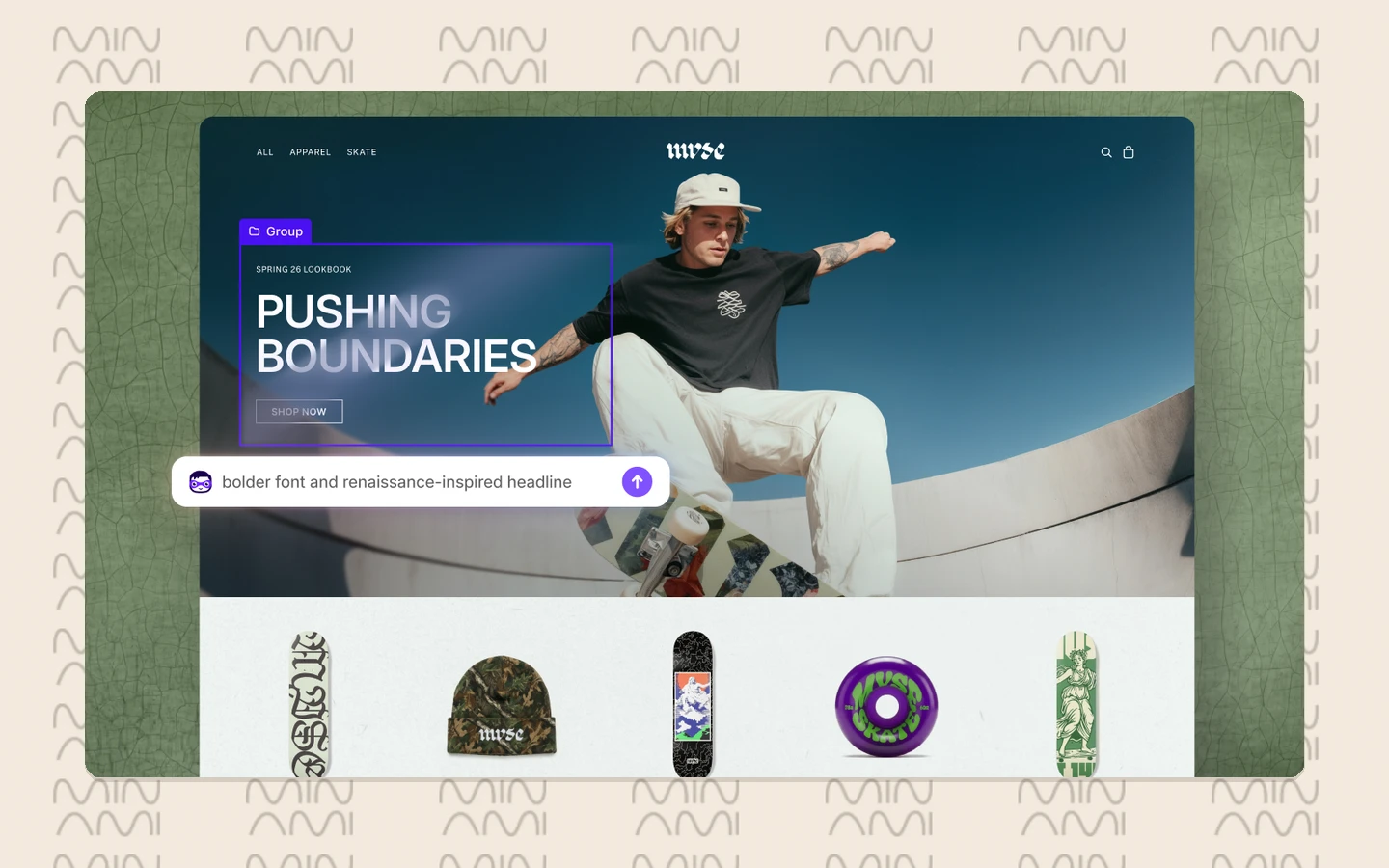
Sidekick also works in the theme editor, where you control how your storefront looks. There it can change theme settings and add sections and blocks your theme already has. Try asking it to make your store feel more retro, then look over the result before you publish anything.
Marketing campaigns, discounts and customer segments
On the marketing side, Sidekick drafts email campaigns in Shopify Messaging, Shopify’s built-in email tool. It also helps you set up Campaign Autopilot, the agent that runs marketing tasks from your admin. And it creates discounts and customer segments from a simple description. As with everything else, you review each discount before it goes live.
The last two prompts below work as a pair. First you find customers who are drifting away, then you give them a reason to come back.
- Draft an email campaign promoting @Winter Coats in a supportive tone, and give me 3 subject line options that are each under 50 characters.
- Build a segment of customers who ordered twice but not in the last 90 days.
- Create a 15% discount for that segment, valid for the next 7 days.
Shopify Flow automations and custom admin apps
Shopify Flow is Shopify’s automation app. You set up rules that run on their own, each made of a trigger (something happens), conditions (only if this is true) and actions (then do this). Building those rules by hand takes time, so Sidekick builds them from a sentence.
To try it, open Flow on a desktop browser, open Sidekick and describe the rule you want. Sidekick sets up the trigger, conditions and actions, tags the workflow as sidekick and leaves it switched off until you test it and turn it on. Shopify says this works best for tagging, notifications, stock alerts and scheduled tasks. If your rule depends on complex business logic, plan to check and adjust it yourself.
- Tag customers as VIP when they place an order over $200.
- Create a workflow that cancels and refunds orders with a high fraud risk level.
- Email the ops team when inventory for any variant drops below 5.
Sometimes the tool you need simply doesn’t exist in Shopify. In that case, turn on Generate app mode and describe the tool. Sidekick builds a small app that runs on Shopify’s Admin API and only lives inside your admin, so your customers never see it. You need a desktop browser to build one. Shopify’s own examples include an app that recommends what to reorder, a generator for discounted checkout links with QR codes and a simple task tracker for your team.
- Build an app that recommends which products to reorder based on my sales velocity.
Sidekick suggestions (formerly Shopify Sidekick Pulse)
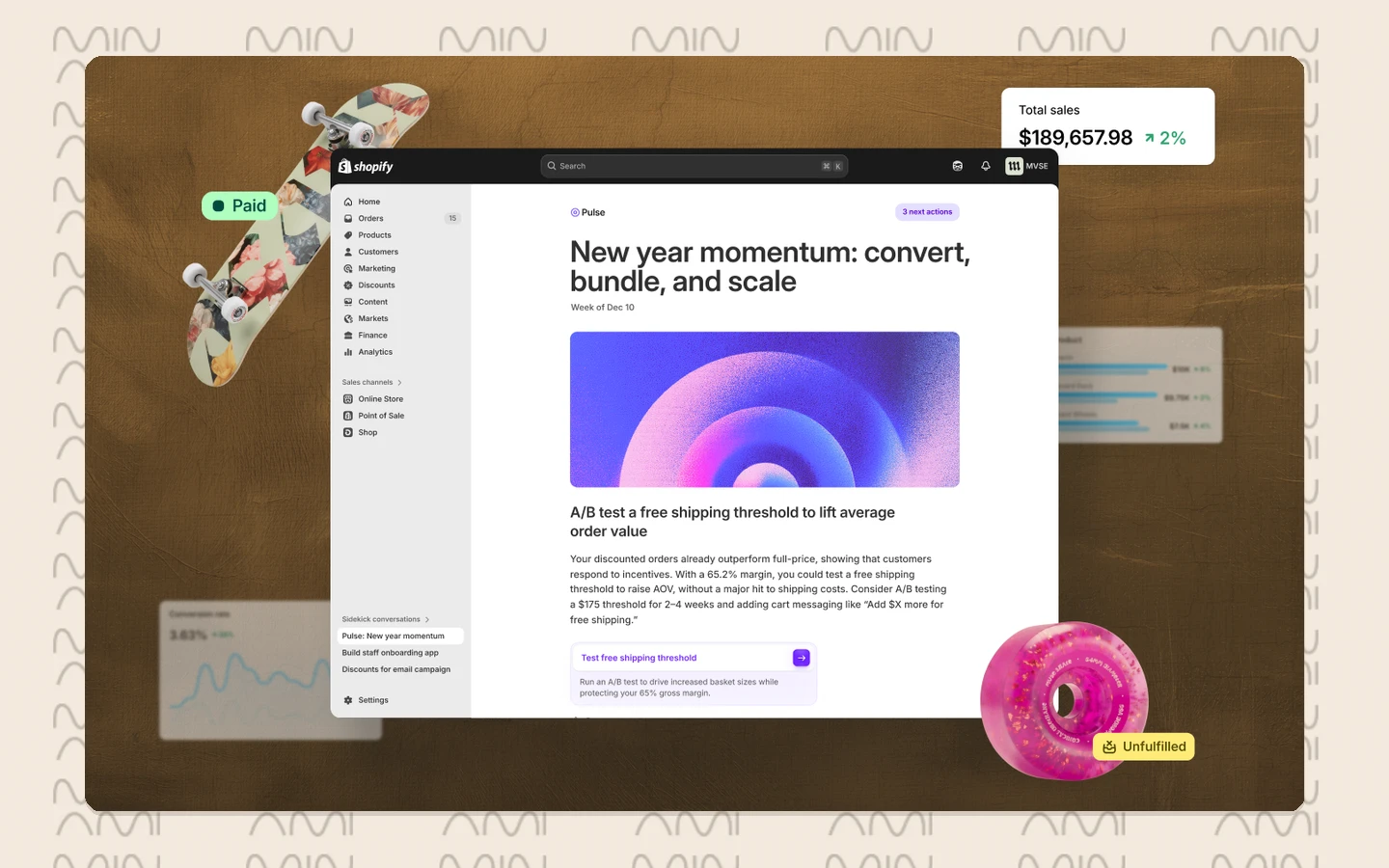
Everything so far starts with you asking. Suggestions work the other way around. Sidekick looks through your store on its own and puts up to 5 suggested actions as cards on your Shopify Home page. When you pick one, it opens a conversation with a to-do list so you can work through it step by step.
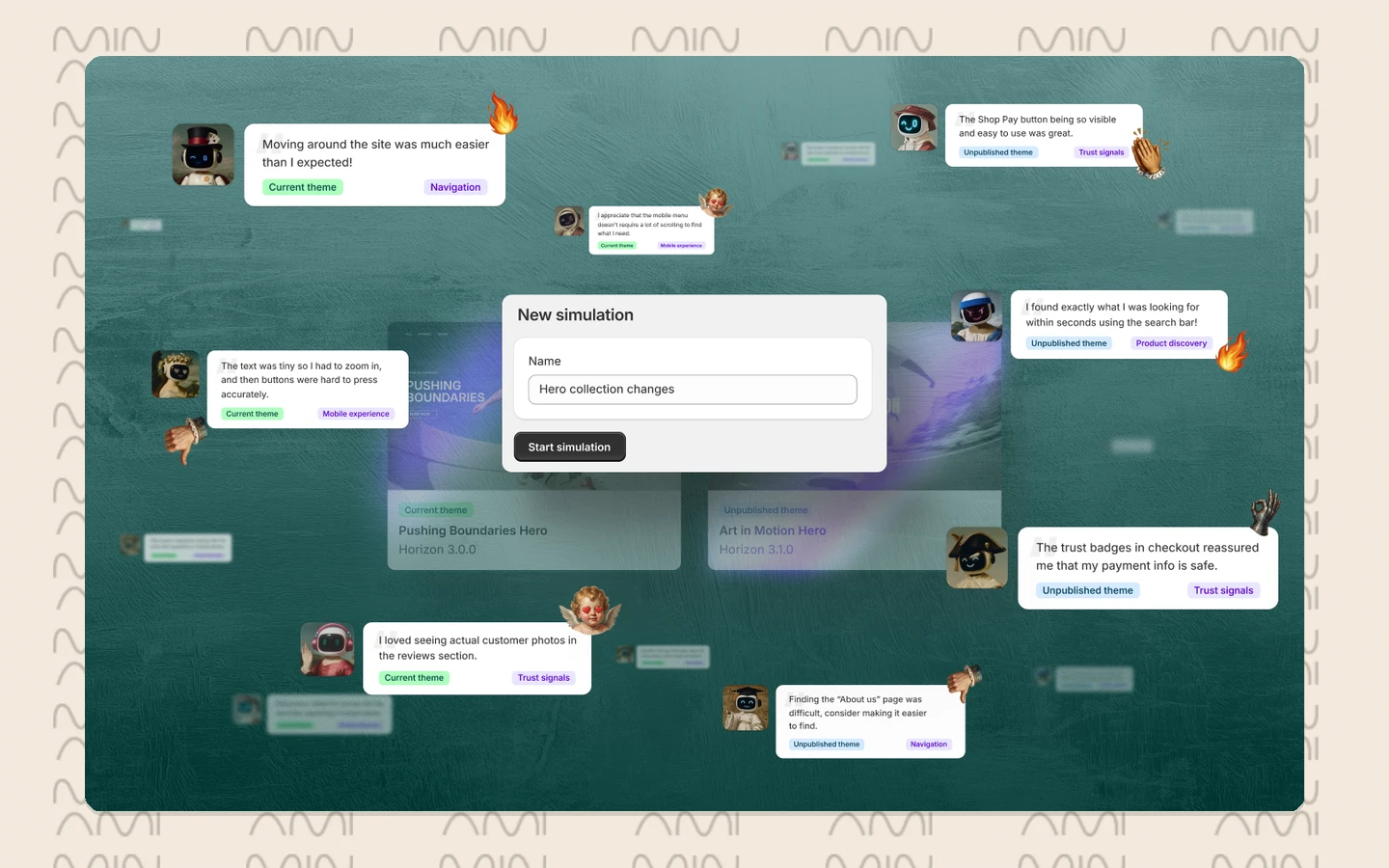
Some suggestions involve your theme, and changing a live theme on a hunch is risky. So Sidekick tests some of those ideas first. It makes an unpublished copy of your theme with the change, and SimGym, Shopify’s testing tool, compares that copy against your live theme using simulated shoppers. Suggestions tested this way carry a Tested by Sidekick badge. Even then, nothing goes live until you publish it. If a suggestion doesn’t fit your store, dismiss the card and tell Sidekick why, so its next ideas get better.
Saved skills
If you find yourself typing the same detailed instructions every week, save them as a skill. A skill tells Sidekick how to do a recurring task your way, for example which numbers go into your weekly sales summary and how to lay them out. You can save up to 50, and Sidekick picks the right one on its own when it fits what you ask.
You won’t find a skills menu. You create, change and delete skills just by asking:
- Create a skill that writes a weekly sales summary.
- Add returns to my weekly sales summary skill.
- List my skills.
- Delete my weekly sales summary skill.
Best practices to get better results from Sidekick
Write specific prompts
Sidekick does its best work when you tell it exactly what you want. Name the metric, the time range, the format and any limits. Asking it to chart daily sales for the last 90 days and describe the 3 biggest spikes gets you a far more useful answer than asking how sales are going. And whenever you mention a product, customer or collection, use @ so Sidekick knows exactly which one you mean.
Keep the context going
Keep related work in one conversation, and let memory remember how you like things done. If you tell Sidekick once how you want your reports laid out and then save that as a skill, everyone on your team gets the same format.
Approve before anything goes live
The safest way to think about Sidekick is as a very fast assistant who drafts things for you to sign off. Check the purple fields before you save a form, and review every Store changes card. Keep in mind that a draft set expires 10 days after its last update, and once you publish changes, you can’t undo them automatically. With Flow, always test a workflow before you switch it on.
Troubleshooting when Sidekick is not working
Most problems have a simple cause. Here are the ones you’re most likely to run into:
- In the Shopify app, Sidekick won’t open on top of a dialog, so close any open dialog first.
- App generation, Flow workflows and Target mode only work in a desktop browser, and you can’t review store changes in the Shopify app.
- Skills don’t load when memory is off, so start a new conversation with memory on.
- If you see no suggestions on Shopify Home, check that your store has recent sales, that you’re the owner or have admin access, and that Shopify Network Intelligence is on.
- If Sidekick ignores one of your apps, that app probably hasn’t added Sidekick support yet.
- If you can’t find Sidekick at all, it may not be available on your store yet, since Shopify’s developer docs note it isn’t offered on every store. Our guide to the Shopify Help Center shows you the fastest way to reach Shopify Support.
Know the limits and the privacy rules
Sidekick can’t edit images inside your theme or product list, and it can’t change your privacy policy. In the checkout editor it can only give you advice, not make changes. As for your data, Shopify says it never uses store data to train foundation models and never shares it with other merchants. Sidekick also only sees what the person logged in is allowed to see.
Key benefits of Shopify Sidekick for daily store operations
The biggest win is time. You get custom reports in seconds instead of building them by hand, and Sidekick drafts forms, order edits and bulk changes so you only have to review them. Automations that used to mean an afternoon in Flow now start from a single sentence, and when Shopify doesn’t have the tool you need, you can generate a small admin app yourself instead of waiting for a developer.
It also keeps your team consistent and in control. Skills mean everyone gets reports in the same format. Permissions mean each person only sees what they should, and nothing reaches your live store without approval. And all of it comes with your Shopify plan at no extra cost.
Where Sidekick stops and Minami takes over
Sidekick works for you and your team inside the admin. It doesn’t talk to your shoppers. Shopify is clear that it can’t talk to your customers or handle support conversations, and it doesn’t contact carriers either.
That leaves the other half of the job uncovered: the shopper who needs to change a delivery address, the parcel stuck at a depot, the return that should really have been an exchange. That’s where Minami AI comes in. Minami is an AI agent for your customers, and it handles these requests from start to finish through the Minami Shopify app. With Minami, you can:
- Contact carriers directly about address changes, reroutes and delivery incidents
- Edit and cancel orders in your store from start to finish
- Turn returns into exchanges
- Recommend products in the same conversation
- Send proactive WhatsApp notifications
The split is simple. Use Sidekick for reports, copy, discounts and Flow, and let Minami resolve the order, delivery and return requests your customers send all day, whether they write on your WhatsApp channel or your site chat. If you’re planning the rest of your AI setup, take a look at our roundup of the best AI agents for Shopify and how the ChatGPT Shopify shopping integration puts your products in front of people shopping with AI.
Minami AI agent
Automate 100% of your eCommerce support
Minami doesn't just chat. It takes the action inside your store and sells while it solves.
- Order edits and cancellations
- Address changes and delivery incidents
- Returns, exchanges and product recommendations